Self-assign a lesson or lesson block
-
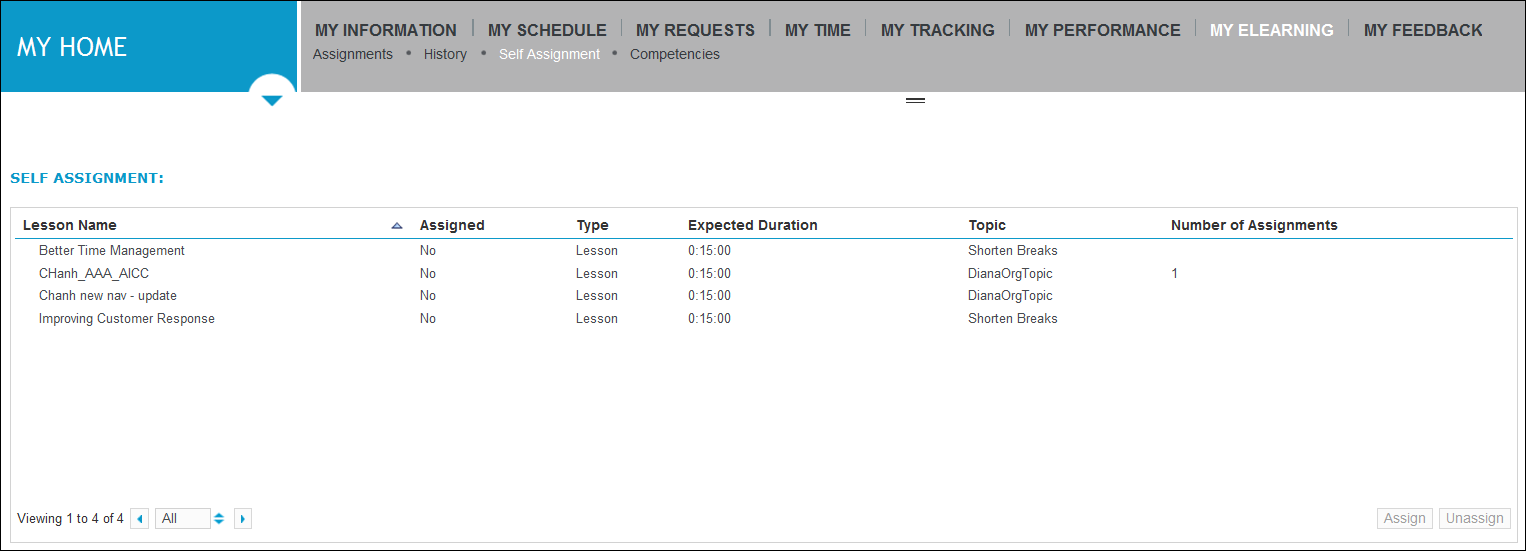
Go to My Home. Under My eLearning Product that provides hard and soft skills training, applicable for the entire employee life cycle (before, during, and after the hiring process), and includes training assessment and design tools., select Self Assignment.
-
From the Lesson Name list, select a lesson or lesson block that you have not yet assigned to yourself, and click Assign.
-
Click Assignments.
The lesson or lesson block you assigned to yourself is now listed on the Current Assignments page.
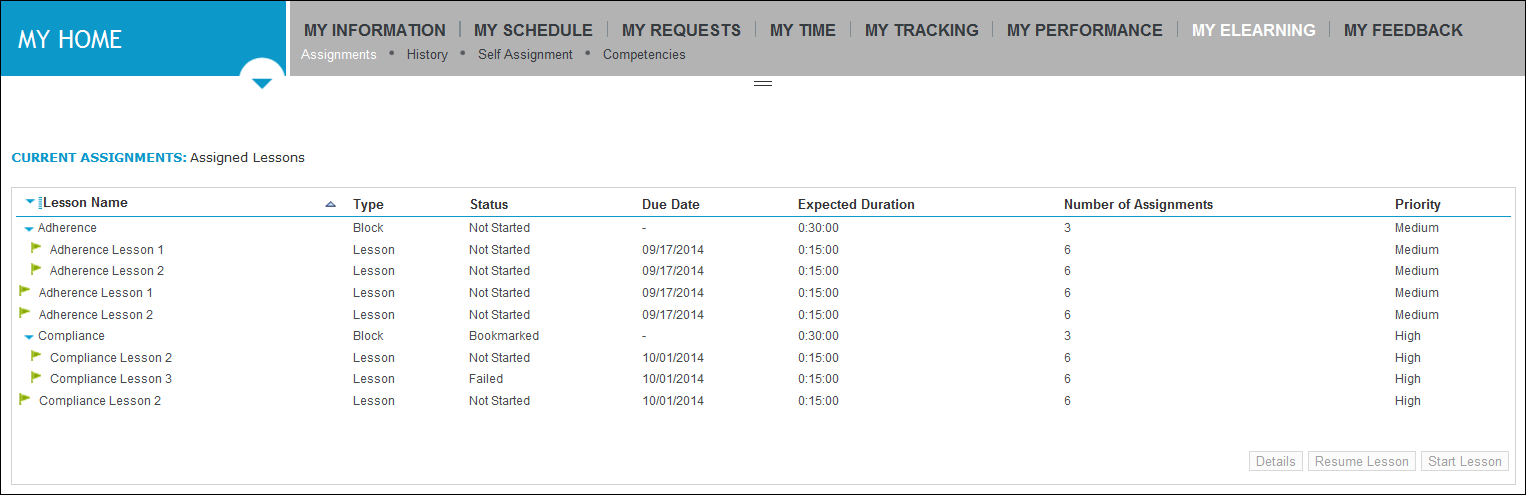
The flag colors beside the lesson names indicate the following information:
-
The green flag indicates that the lesson (or lesson in the lesson block) is newly assigned. This flag displays for 3 days after the lesson is assigned.
-
The yellow flag indicates that the assignment is due in 3 days.
-
The red flag indicates that the assignment has passed the due date.
For details on starting the lesson you assigned to yourself, see Self-assign a lesson.
-