Open and view the lesson assignment history list
-
Go to My Home. Under My eLearning Product that provides hard and soft skills training, applicable for the entire employee life cycle (before, during, and after the hiring process), and includes training assessment and design tools., select History.
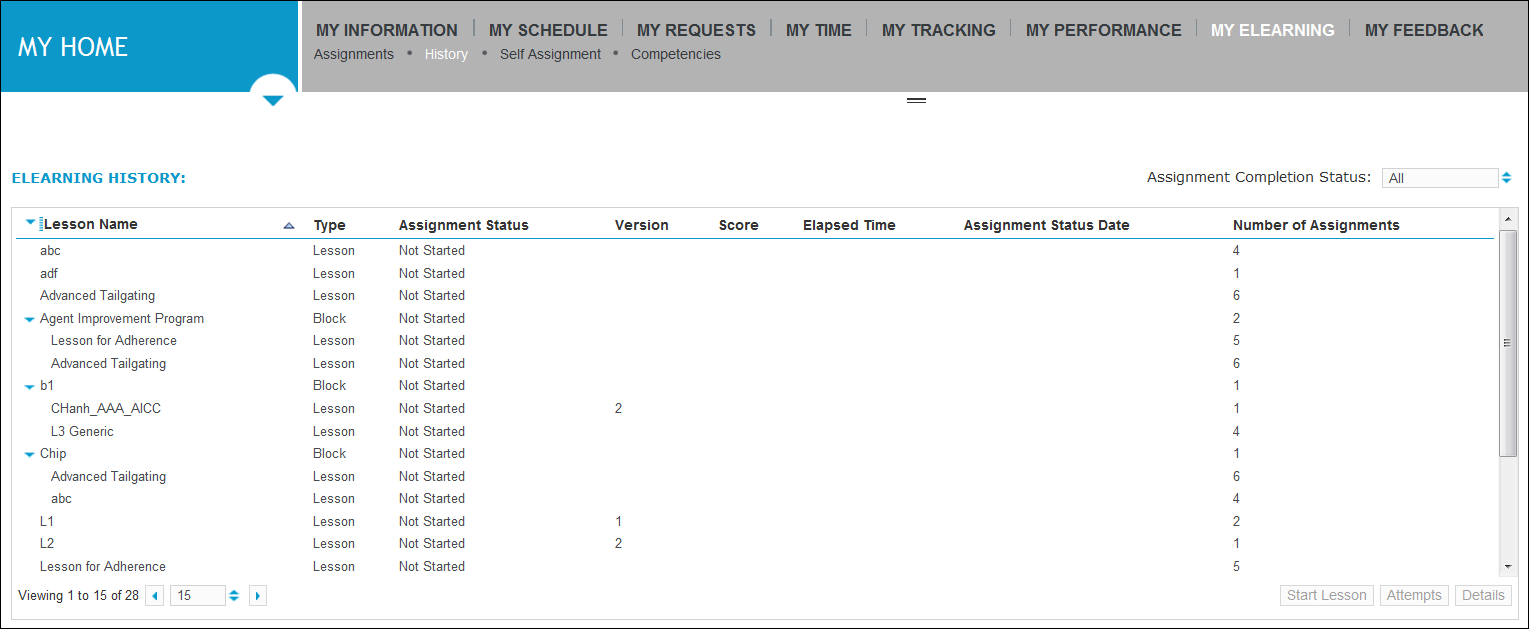
The eLearning History page opens, showing the list of all lesson assignments, both current and completed, and the details related to each assignment.
-
To filter the view and to display lesson assignments that meet a specific status criteria, click
 beside the Assignment Completion Status box at the top right corner above the eLearning History list. From the drop-down list, select a status designation (for example, Completed or Not Completed).
The eLearning History page refreshes to show only the lesson assignments with the status you selected.
-
To review your lesson assignment history, view the information contained in these columns on the eLearning History page:
-
Lesson Name: The name of each lesson or lesson block.
-
Type: Whether an item is a lesson or a lesson block.
-
Assignment Status: The status of each lesson assignment, such as Done, Failed, Passed, In Progress, and Bookmarked.
-
Version: Identifies which version of the lesson was assigned.
-
Score: The score if a lesson assignment has been completed. The score shown is the score achieved for the most recent attempt if applicable.
-
Elapsed Time: The time it took for you to complete the lesson.
-
Assignment Status Date: The date the Assignment Status was updated.
-
Number of Assignments: The number of times the lesson was assigned to you. Multiple lesson assignments mean that lesson assignments were triggered from several different sources, such as through the organization or group to which you belong. At the same time, your supervisor may also have assigned the same lesson to you individually.
-