Organization Settings
The Organization Settings affect the behavior of, and options for, applications in the entire organization.
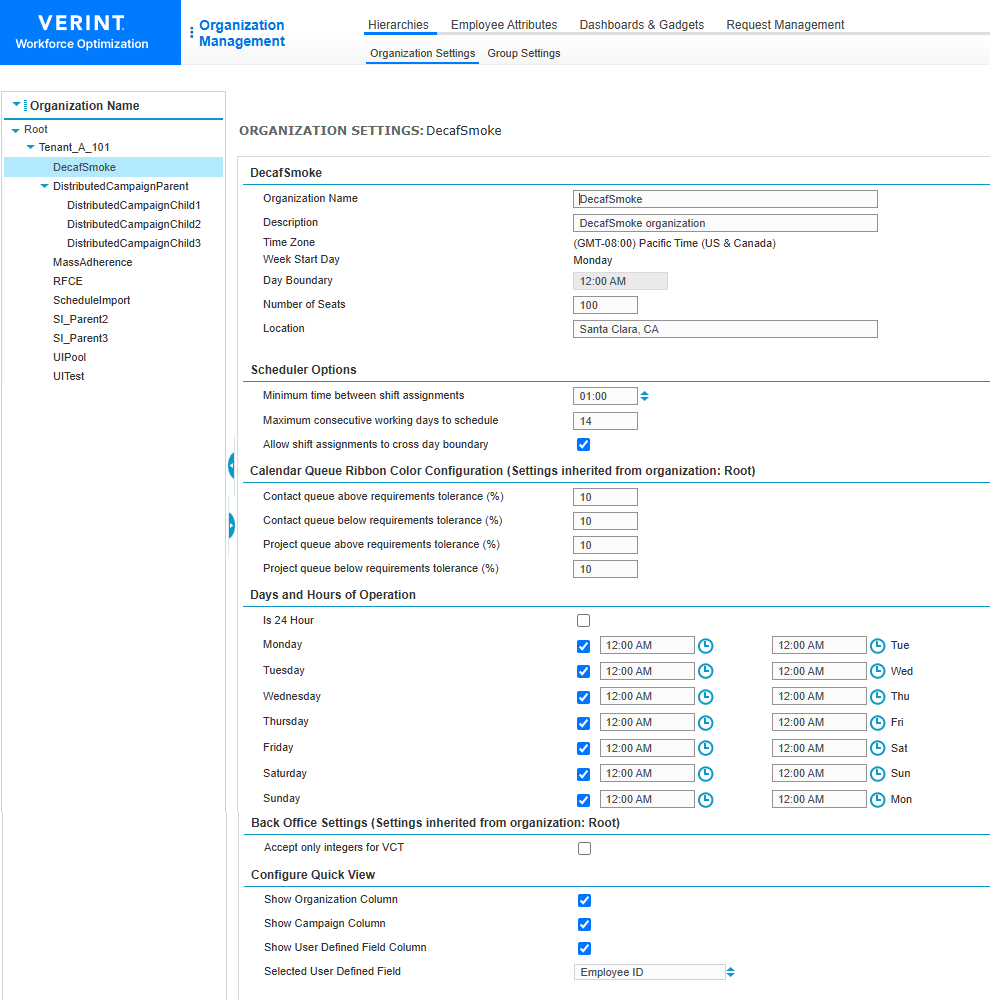
Organization
|
Setting |
Description |
|---|---|
|
Organization Name |
The name of the organization. Each organization name in the system must be unique. You cannot duplicate an organization name, regardless of the level of the hierarchy at which the organization is created. In a SaaS environment, the format for the name is <Tenant Name>_<Name of Sub-Organization>. |
|
Description |
A brief statement that identifies the organization. |
|
Time Zone |
The organization's time zone. This becomes the default time zone for the organization and cannot be changed once it is set. |
|
Week Start Day |
Start day or first day used within Workforce Management applications such as Forecasting & Scheduling, with respect to organizations and campaigns. Once the Start Day is set for an organization, it cannot be changed. |
|
Day Boundary |
The time that marks the endpoint of a day. This setting cannot be changed once the organization has been created. |
|
Number of seats |
A Workforce Management and Workforce Optimization configuration setting. This is not the same as the number of seats for recording. |
|
Location |
The physical location of the organization, used for the Scorecard Performance Map. Typically used by Branch Forecasting customers. |
Scheduler Options
|
Setting |
Description |
|---|---|
|
Minimum time between shift Work period in WFM that has a definite length. assignments |
The fewest number of hours allowed between shift assignments. |
|
Maximum consecutive working days to schedule |
The greatest number of consecutive days that can be scheduled. |
|
Allow shift assignments to cross day boundary |
When selected, scheduled time can cross the day boundary, typically 12:00 a.m. |
Calendar Queue Ribbon Color Configuration
|
Setting |
Description |
|---|---|
|
Contact queue Entity that represents demand in WFM. Queues help predict workload by multiplying the volume of customer interactions by their expected handling time. above requirements tolerance (%) |
Color control for statistics on the WFM calendar. |
|
Contact queue below requirements tolerance (%) |
Color control for statistics on the WFM calendar. |
|
Project Instance of the Speech and Text Analytics application that supports a different language or Line of Business (LOB). queue above requirements tolerance (%) |
Color control for statistics on the WFM calendar. |
|
Project queue below requirements tolerance (%) |
Color control for statistics on the WFM calendar. |
Days and Hours of Operation
|
Setting |
Description |
|---|---|
|
Is 24 Hour |
Indicates whether the organization works according to a 24-hour schedule, |
|
Sunday though Saturday check boxes |
The days of operation. |
|
Sunday though Saturday times |
The start time for operations on the associated day. |
|
Monday through Sunday times |
The end time for operations on the associated day. |
Back Office
|
Setting |
Description |
|---|---|
|
Accept only integers for VCT |
Used when tracking volumes through the Volume Capture Tool. |
Configure Quick View
The Configure Quick View settings define the columns and data displayed in Quick View (under Tracking, Adherence, and Quick View). By default, this data is not displayed in Quick View.
|
Setting |
Description |
|---|---|
|
Show Organization Column |
Displays the Organization column for employees in Quick View. |
|
Show Campaign Column |
Displays the Campaign column for employees in Quick View. |
|
Show User Defined Field Column |
Displays the specified user-defined field for employees in Quick View. The user-defined field is defined by the setting, Selected User Defined Field. To display this field in Quick View, logged-in users need to be assigned at least a View privilege Permissions associated with each role that define the features of the application a user is able to view and the functionality in the application the user can access. for this field in User Management Module that an administrator uses to create a profile for each employee in their organization., Security, and Roles Setup. |
|
Selected User Defined Field |
Select the user-defined field for viewing in Quick View. The user-defined fields displayed in this list are predefined in Organization Management Module in WFO that allows administrators to set up different hierarchies to manage users from a single, unified, Web interface., Employee Attributes, and User Defined Fields. |
Calendar Queue Color Ribbon Configuration (Workforce Management Forecasting and Scheduling Guide)