Take a Lesson
-
Go to My Home. Under My eLearning Product that provides hard and soft skills training, applicable for the entire employee life cycle (before, during, and after the hiring process), and includes training assessment and design tools., select Assignments or History.
-
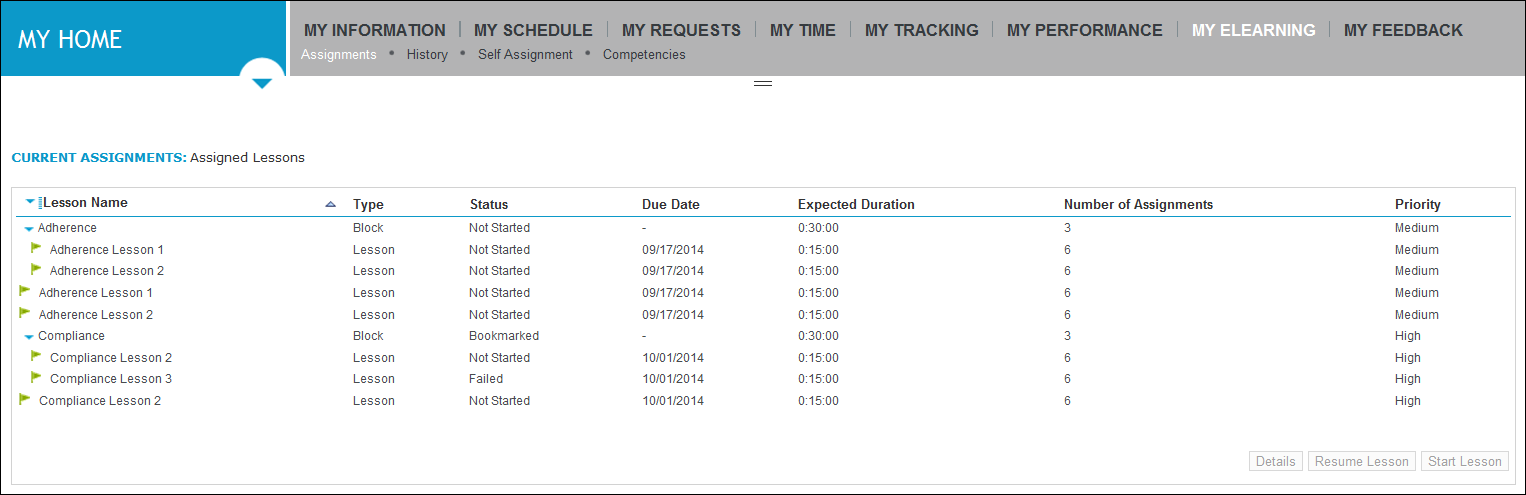
If you clicked Assignments, the Current Assignments page lists all the lessons and lesson blocks currently assigned to you, and also shows the status of each lesson or lesson block.
-
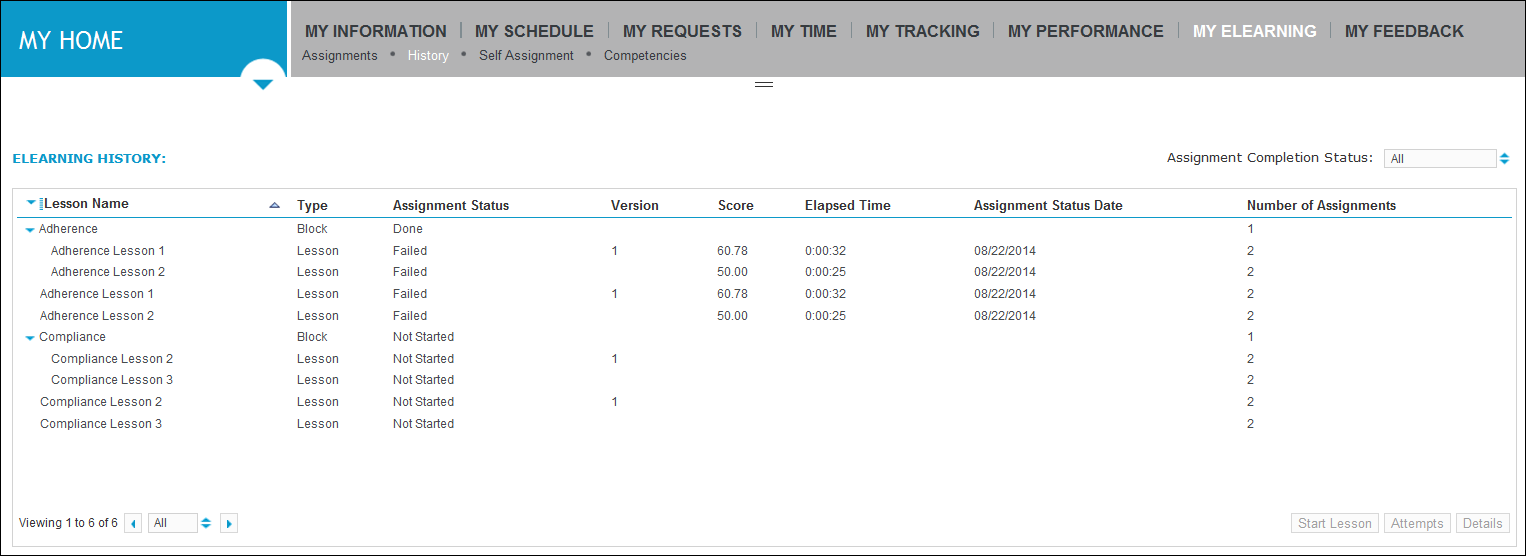
If you clicked History, the eLearning History page can list all lessons and lesson blocks assigned to you, both those that are still current and those that have been completed. Each lesson or lesson block status is also displayed.
-
-
Select the lesson that you want to take. It can be a standalone lesson, or a lesson that is in a lesson block.
-
Click Start Lesson.
The lesson launches in a separate browser page.
-
Complete the lesson as required, including any scored questions contained in the lesson.
-
Exit the lesson as instructed. Examples of how you exit are:
-
If you took a lesson that consisted of a static file, such as a Microsoft Word file, click Finish.
-
If you took an interactive lesson, like the scored TrainerSoft lesson Basic Listening Skills, you are prompted to click Exit.
As you exit, the browser page containing the lesson closes. For details about the lesson attempt results that the system displays, see View lesson attempt results.
-